This guide is for anyone buying Shadowrocket for the first time on an iPhone or iPad. Follow the steps to search, verify the app, pay, download and open it for the first time. You’ll learn how to distinguish the app purchase from connectivity services, and what to check if the app doesn’t appear in search, the download stalls or you need to reinstall. If you already have a subscription, you can import it after installing the app; get subscriptions from your service provider.
Before you buy: Check what you’re purchasing and device requirements
Shadowrocket is a closed-source commercial client for Apple platforms, available exclusively through the App Store. You’re purchasing the client itself, not a connectivity service. Buying the app does not include a server, subscription link or service provider account. Knowing the difference helps prevent mistaking an installed app for an active connection service.
This guide focuses on iPhone and iPad. For compatibility, system requirements and whether a purchase is universal across Mac, Apple TV and Apple Vision, check the App Store listing. Before buying, expand the product page’s compatibility details and compare them with your device. A purchase on another device using the same account doesn’t guarantee that the app can be installed on your current device.
- Make sure the App Store is signed in with the Apple Account you’ll use to buy the app, and note which account you use.
- Make sure your account has a valid payment method. The current store and final confirmation screen show the applicable price, currency and taxes.
- Use a stable network and make sure your device has enough free storage so that connection or storage issues don’t block the download after payment.
- If you plan to connect right after installation, have your own server details or subscription ready. Get subscriptions from your service provider.
Search results: Verify the developer, icon and app ID
Open App Store → Search and enter the full product name, Shadowrocket. Open the product page to verify the details; don’t rely on the short title in search results alone. Search rankings and listings can change, and a similar name or icon doesn’t prove it’s the same app.
The official icon shows a rocket outlined in blue and purple on a white background. Use the icon for visual identification, then confirm the developer name and app ID. Check all three; no single detail is enough on its own.
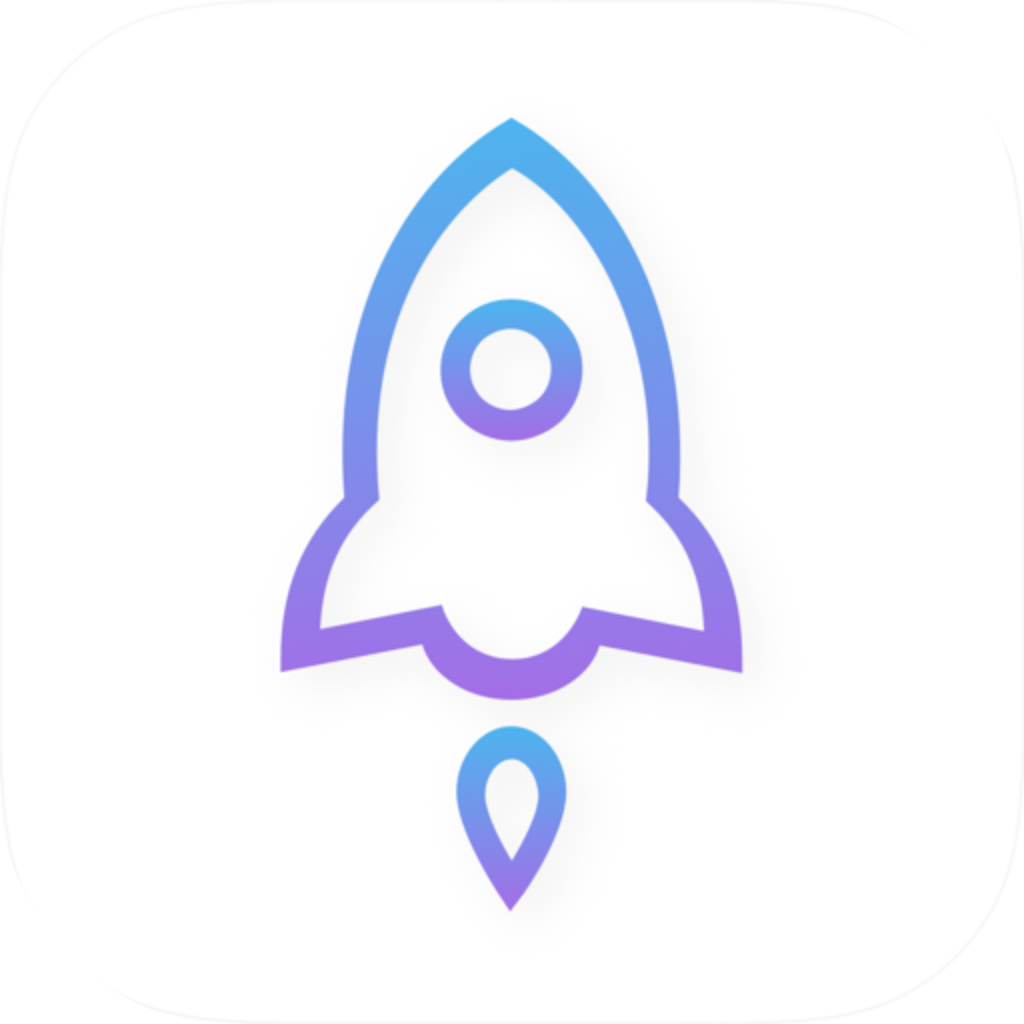
You can verify the app ID in the link shared from the product page by looking for id932747118. The link’s language or regional path may differ, but the numeric ID at the end should still match. If you can’t confirm it from search results, visit the genuine app verification page and use its App Store link to view the product.
Bottom line: Don’t pay until all app details match
If the developer, icon or app ID doesn’t match, return to the verification page and reopen the product from there. Don’t use search ranking to determine whether an app is genuine.
Buy and download: Complete your first purchase in five steps
Once you’ve verified the app, check the price button on the product page. First-time buyers usually see a price; accounts that already own the app may see a redownload icon, while devices with the app installed may show Open. The button depends on your account and device, so it may look different for different users.
-
Open the App Store
Go to App Store → Search, enter Shadowrocket and open its product page. You can also open the App Store listing from the download page on this site.
-
Verify the app
Make sure the app is named Shadowrocket, the developer is Shadow Launch Technology Limited, the icon matches this guide and the link contains id932747118.
-
Check compatibility
Review the compatibility and price details on the product page. Check the App Store listing for system requirements and whether the purchase is universal, then make sure your device is supported before continuing.
-
Confirm payment
Tap the price button. Check the app name and amount on the system purchase confirmation screen, then confirm with Face ID, Touch ID or your account password as prompted. Authenticate only if both the app and price are correct.
-
Wait for installation
Wait for the download to finish, then open the app when the button shows Open. If the download pauses, troubleshoot your network or storage first; repeatedly tapping the price button won’t restart it.
Payment confirmation and download progress are separate stages. After the transaction completes, your device still needs to download and install the app. If the purchase is complete but the Home Screen icon still says it’s waiting, troubleshoot the download before considering another purchase. If you’re unsure whether payment went through, check your purchase history before taking any further action.
Common issues: Troubleshoot search, payment and redownloading separately
First identify where the process is stuck: an app that doesn’t appear in search is a visibility issue; an error at purchase confirmation points to an account or payment issue; a stalled progress bar is a download issue; and seeing a price again on another device means you should check the purchasing account. Treating these as separate issues helps you avoid repeatedly changing the wrong settings.
Can’t find Shadowrocket in search? Here’s what to check
Check the spelling, then open the verified App Store listing from this site’s download page. If the store says the app isn’t available in your country or region, follow that notice; opening the direct product page won’t bypass regional availability restrictions. Then check your App Store account’s region and your device’s compatibility. No search results don’t necessarily mean the app name is wrong.
The price button won’t complete the purchase. Do I need to change client settings?
Purchases are handled by the App Store, not by Shadowrocket’s Home, Config or Settings. Open system Settings → Apple Account → Payment & Shipping to check your payment details and look for any billing alerts. If purchase restrictions are enabled on your device, also check Screen Time permissions for store purchases. The exact menu location may vary by device.
The download is still waiting after purchase. How can I check whether it went through?
First, go to system Settings → Apple Account → Media & Purchases → View Account → Purchase History to check your transaction. Then check your available storage and network connection. If the transaction is listed but the download hasn’t finished, return to the App Store and resume it as prompted. Don’t submit the purchase again to fix a stalled download.
The price appears again on another device. Do I have to pay again?
First, make sure the App Store account you’re using is the one associated with the original purchase, then look for Shadowrocket in that account’s purchased apps. The account used for App Store purchases may differ from the one used for other services on your device. If you’re using a different type of device, also check the product page’s compatibility and universal purchase details. Don’t pay again until you’ve confirmed the account and purchase history.
After installation: Prepare your configuration before allowing a VPN connection
After you first open the app, Home, Config and Settings are client screens, separate from the App Store payment flow. Home is mainly for managing connection profiles and starting a connection; Config is for configuration files and rules; Settings is for app preferences. Seeing no available server right after installation doesn’t mean the purchase failed.
- Prepare your connection details: Get subscriptions from your service provider. Make sure you have your own subscription link or complete server details. Don’t enter an App Store product link in Subscribe.
- Check after importing: In Home, make sure the expected server appears and that its name matches your provider’s details. When entering details manually, match the address, port, authentication information and protocol options exactly.
- Select a server, then connect: Select the server you want to use in Home, then turn on the connection switch. If the system asks to add a VPN configuration, confirm that the request was triggered by your own connection attempt, then authorize it as prompted.
- Test the connection: Use Connectivity Test to check reachability, then visit the destination page. An enabled switch only means the connection process has started; it doesn’t confirm that the server is reachable or that the destination can be accessed.
Buying the client doesn’t replace configuration. Authentication failures, subscription update timeouts and mismatched rules must be troubleshot in your connection details and client configuration—not by paying again. See the setup guide for the full sequence. Before sharing diagnostic details, remove subscription links, passwords and other personal credentials.
After purchase: Keep your receipt and identify where to troubleshoot
After purchasing, keep your App Store receipt and remember which account you used. For a reinstall, check your purchase history first; after a system update or device change, check compatibility; if a connection fails, check the server and configuration. This helps separate store issues from connectivity problems.
| What you’re seeing | Where to check first | What to confirm |
|---|---|---|
| Not sure whether payment went through | App Store account purchase history | Whether the history shows a Shadowrocket transaction |
| Can’t install on a replacement device | App Store product page compatibility | Device compatibility, system requirements and universal purchase details |
| No server appears after installation | Home and your connection details | Whether you’ve imported your own subscription or server details |
| The switch is on, but you can’t access the destination | Connectivity Test and current configuration | Reachability, authentication details and rule matching |
The final check is not simply whether you tapped Buy: verify the app’s identity, confirm the transaction in your account and make sure installation is complete. Connectivity services are managed separately; buying the client does not include a service plan. This guide assumes you already have your own subscription or server details. This site explains client installation and configuration only; it does not provide, sell or recommend connectivity services.