Developer, icon & app ID
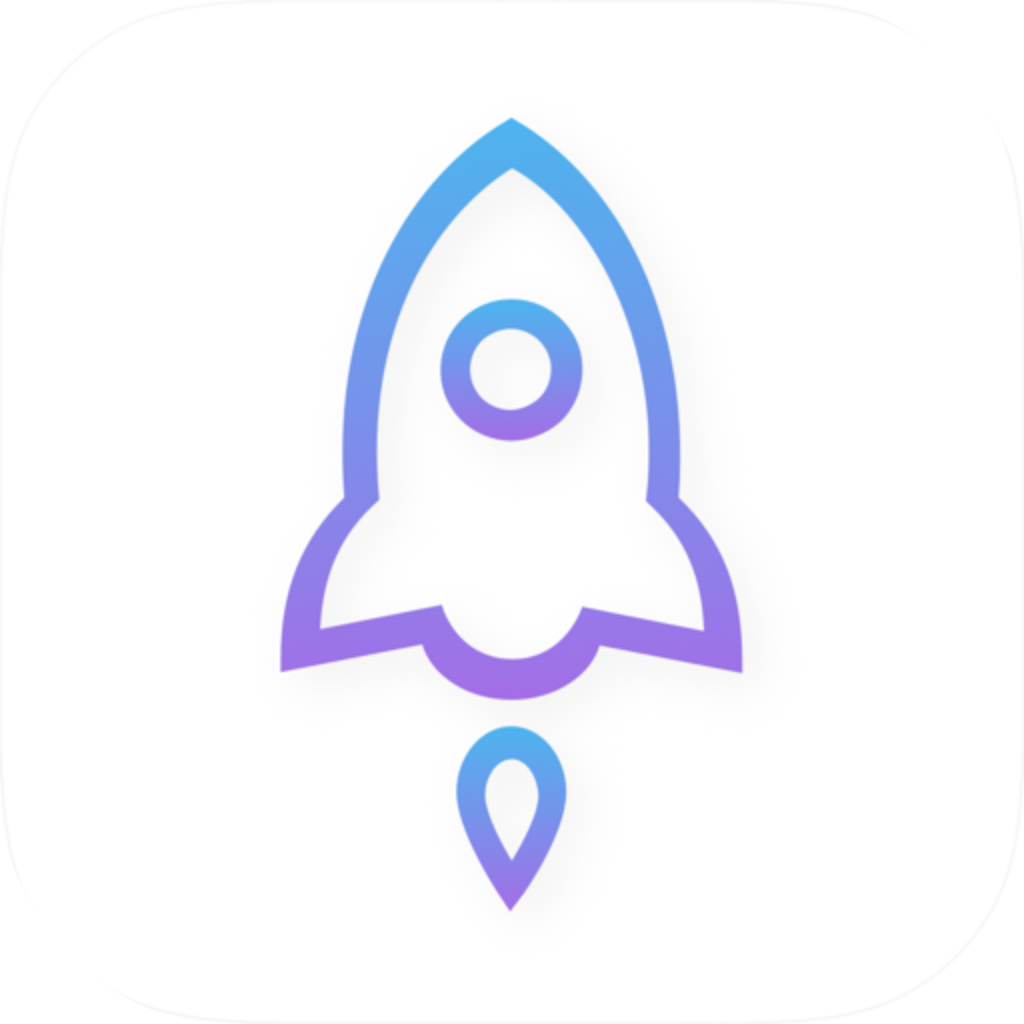
On the product page, first confirm that the app is named Shadowrocket, then check that the developer is Shadow Launch Technology Limited and that the icon matches the official icon above. The id932747118 in the product page URL corresponds to app ID 932747118. All three details should match; don’t rely on a nickname or a similar-looking icon alone. If you opened the page from search results, return to the product details and verify them again before paying.
The official icon can help identify the app, but it isn’t a substitute for checking the developer and app ID. The App Store page gathers the verification steps in one place for you to check before purchasing. Review the system requirements, compatibility, and purchase information on the listing to see whether the app is available for your device. Don’t rely on screenshots in articles or other people’s devices to draw conclusions.
App Store availability and account region
The App Store content you see depends on the storefront for your current account. If the product page isn’t available, check the store account and storefront you’re using, then review device compatibility and any messages from the store. The price, payment options, and availability are determined by the current App Store listing. Being able to open the product page on the web doesn’t guarantee that you can purchase the app right away with your device and account.
Before purchasing, confirm your account details and available payment methods, and follow the App Store account rules. The iCloud account signed in on your device may differ from the account used for App Store purchases. When checking purchase history, use the store account that completed the transaction. Don’t confuse account region, device language, and app interface language; each controls a different setting.
What the one-time purchase covers
The US storefront price is around $2.99, paid once; the actual price is shown on the App Store listing, with other storefronts displaying local currency. The purchase covers use of the app, not an ongoing internet connection service. Shadowrocket reads existing connection details, applies rules, and establishes connections. Check with your service provider about server availability and service duration.
One-time app purchase ≠ connection service plan. This site does not provide, sell, or recommend servers or subscriptions. Before using Shadowrocket, get a subscription from your service provider. If you have the app but no connection details, prepare the required parameters before continuing with the guide. Keep purchase credentials, server credentials, and configuration files separate so you don’t mistake one for another while troubleshooting.
Purchases across two devices
On iPhone and iPad, check purchase eligibility with the same Apple ID. Refer to the App Store listing for universal purchase availability. If you’ve already purchased the app, check whether the store offers a redownload or prompts you to buy it. If the message isn’t what you expected, check the current store account and purchase history. Don’t assume you’re eligible just because an account is signed in on the device.
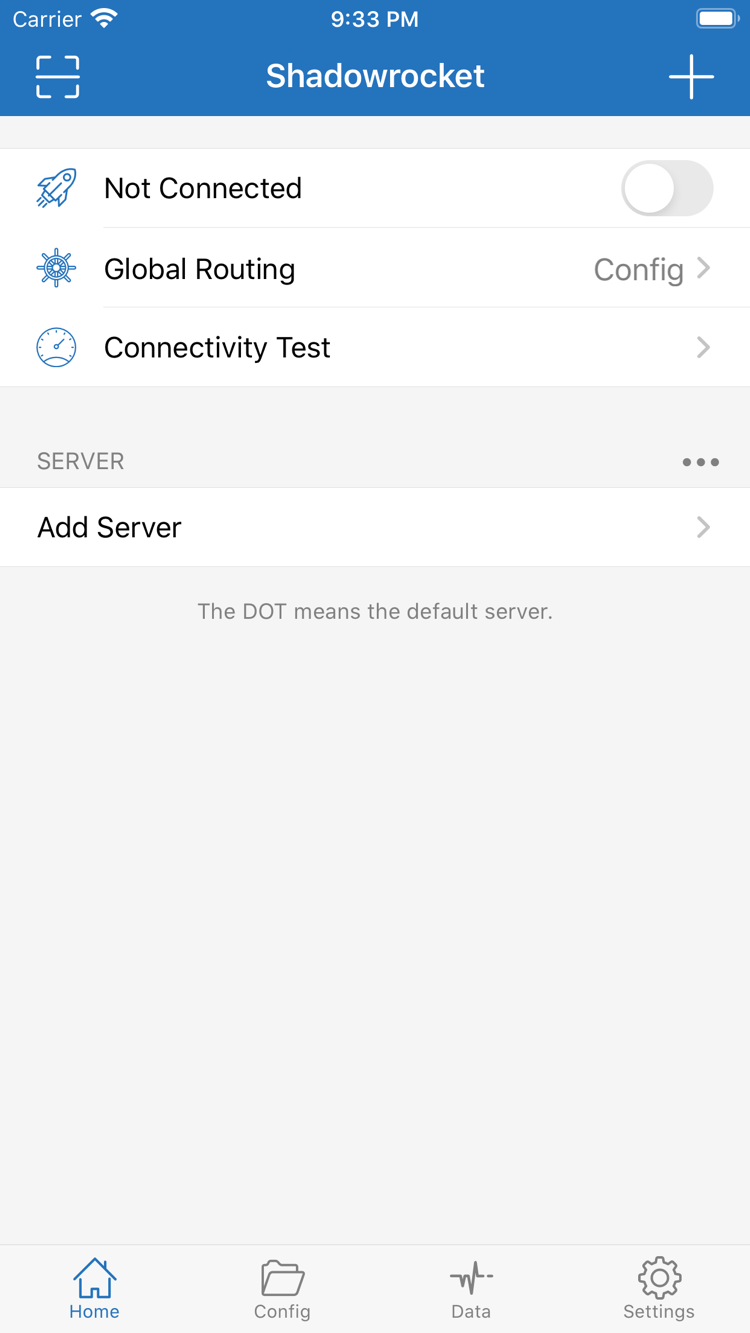
Purchase eligibility doesn’t mean all settings have synced. On another device, check whether the server was imported, Config is active, Global Routing is set as intended, and the system has separately allowed a VPN configuration. Even with iCloud sync, verify the results before connecting for the first time—especially the selected server and rule file—so differences between devices aren’t mistaken for a service issue.
Moving to a new device, reinstalling & restoring purchases
Before changing devices or reinstalling, make sure you can find your purchase record and safely keep your configuration and connection details. To restore the app, use the original purchase account in the App Store to find your purchased apps, then follow the prompts to download it again. Restoring access to the app and restoring local configuration are separate tasks. After reinstalling, check whether your servers, rules, and authentication details have been restored.
Don’t delete the app immediately just to test a connection problem. Keep your current configuration, note what’s happening, and check each item in the guide first. Reinstalling may mean extra work to import everything again. Family Sharing availability depends on the App Store listing; don’t assume that one account’s purchase gives another account the same eligibility.
Check app updates and configuration changes separately
App updates are managed through the App Store, where you can review update history and device compatibility. Server subscription updates depend on the subscription content, while rule configuration updates change how traffic is routed. These are separate processes. If behavior changes after an app update, note your current settings and check whether the subscription or configuration changed at the same time.
Keep a verified copy of your rule configuration, and note the original values before making changes. If something goes wrong, first determine whether all destinations fail, only certain domains fail, or the issue occurs only after switching networks. Then choose what to check. This helps you investigate app settings, server details, and network conditions separately instead of repurchasing the app or repeatedly rebuilding the same configuration.