Official Manual · App Store purchase

Shadowrocket User GuideSetup, routing & connections

iPhone / iPad app with rule-based routing; the app is a one-time purchase, and connection details come from your service provider.

Global Routing WireGuard On Demand
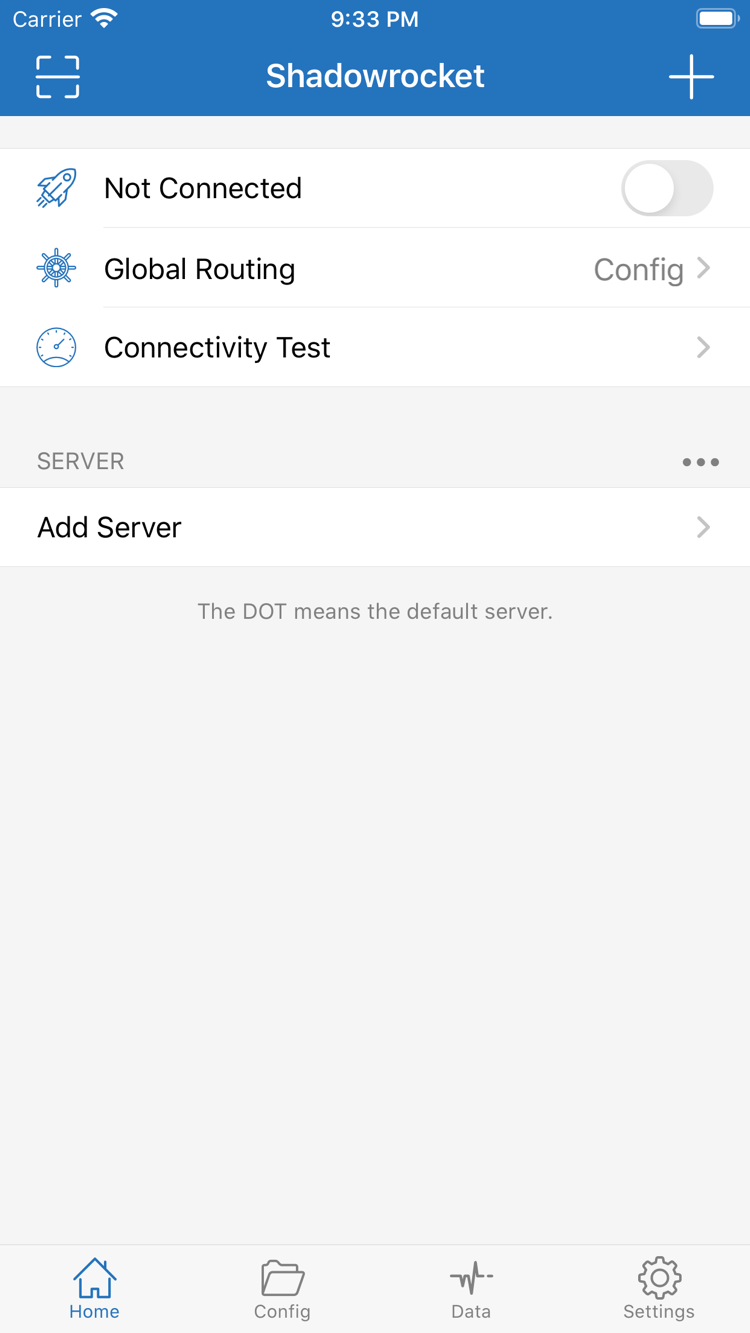
Official Shadowrocket Home screenshot showing the connection switch, Global Routing and Add Server
Shadowrocket · Official Home screenshot
Where to Get It

Getting Shadowrocket on iPhone and iPad

Shadowrocket is purchased and installed through the App Store. Check the product page first, then confirm that your device meets the requirements. Refer to the App Store listing for system requirements and universal purchase availability.

iPhone

After purchasing in the App Store, open the app. Have an existing subscription or server details ready before importing them. When connecting for the first time, follow the system prompt to allow a VPN configuration. Getting the app and establishing a working connection are separate steps; verify each one.

See how to get Shadowrocket on iPhone →

iPad

In the App Store, check your purchase history using the same Apple ID used to buy the app. If you’re eligible, you can download it again; follow the store’s prompts. A larger screen can make configuration easier to review, but check the selected server, rule file, and connection permissions on the device you’re using.

See how to get Shadowrocket on iPad →

Shadowrocket is also available in the same App Store for Mac and Apple TV. Check the App Store listing for compatibility.

See the steps to get the app →
Go to the App Store (opens in a new tab)
Setup & Connections

Shadowrocket Features

The server determines where you connect; rules determine which requests use that connection. Start with a basic setup you can verify, then enable On Demand, subscription updates, and diagnostic tools one at a time. This makes it easier to pinpoint what changed if something goes wrong.

Global Routing

In Home, open Global Routing and choose Config, Proxy, or Direct. Config matches traffic against the rules in the active configuration file; Proxy sends traffic handled by the app through the proxy; Direct connects without the proxy. To route traffic by domain or IP range, first make sure Config is selected, then check the rule order. Turning on the connection only starts it—it doesn’t mean every request will use the proxy. When troubleshooting, change one mode at a time and compare the same destination before and after, so you don’t mistake a mode difference for a server problem.

Follow the rule order to determine traffic routing
[Rule]
DOMAIN-SUFFIX,example.com,PROXY
IP-CIDR,192.168.0.0/16,DIRECT
FINAL,DIRECT

One-time app purchase ≠ connection service plan

For Type, authentication, and transport fields, see the protocol reference. For DOMAIN-SUFFIX, IP-CIDR, and FINAL, see the quick glossary.

Your First Connection

Start with connection details you already have

These steps assume you already have a subscription or server details. Get one connection working before adding rules and automation; changing several settings at once makes it harder to identify the cause of problems later.

  1. 01 / Import

    Add Server and subscription imports

    Get complete server details or a subscription link from your service provider. In Home, tap Add Server, choose the Type that matches the information, and fill in the corresponding fields. If you have a QR code, use Scan QR Code. Return to the server list after importing. Check that the expected group appears and select the server for this connection. Don’t rely on the entry name alone: check the protocol, address, and port as well. A successful import doesn’t mean the connection works.

    When entering details manually, preserve the original capitalization and watch for spaces at the beginning or end of copied text. If entries change after a subscription update, check your selection again. If information is missing, ask the original provider to confirm it rather than guessing passwords, authentication, or transport settings. Check rule files and server details separately; importing one doesn’t ensure the other is configured correctly.

  2. 02 / Routing

    Choose a Global Routing mode

    Open Global Routing. If you have an active rule file and understand how it works, choose Config to route requests according to its rules. To temporarily send traffic through the proxy or connect directly for comparison, choose Proxy or Direct. Config doesn’t automatically handle every use case; its behavior depends on the active file. When reviewing rules, check specific domain or IP range matches first, then the FINAL rule at the end.

    PROXY and DIRECT in rules are policy keywords; Proxy and Direct in Global Routing are overall modes. They operate at different levels. With Config selected, rules can still send some traffic to DIRECT. That’s a rule result, not a failed connection. Before testing, note the current mode and configuration file. Restore the settings you need after the comparison.

  3. 03 / Verify

    Connection switch and Connectivity Test

    Return to Home, make sure the intended server is selected, then turn on the connection. The first time you connect, read the system prompt and allow it to add a VPN configuration. Then run Connectivity Test and open a page you need to access. Set up On Demand only after you’ve verified both the test and real-world access. System permission lets the app establish a connection; it doesn’t provide a server or subscription.

    If the switch is on but webpages won’t load, first check the server details and service status, then Global Routing, followed by DNS and rule matches. Change one factor at a time and, where possible, retest on the same network and destination. When asking for help, say which step fails and whether the issue affects only certain destinations. Remove personal credentials before sharing details.

Read the full guide →
App Store Verification

Store listing, purchases & restores

This is the official Shadowrocket website and manual. Shadowrocket is closed-source commercial software, available and updated through the App Store. To verify the listing, check the developer, official icon, and app ID—not just similar names in search results.

Official Shadowrocket icon

Shadowrocket

Developer: Shadow Launch Technology Limited
App ID: 932747118

See how to verify all three details →

Developer, icon & app ID

On the product page, first confirm that the app is named Shadowrocket, then check that the developer is Shadow Launch Technology Limited and that the icon matches the official icon above. The id932747118 in the product page URL corresponds to app ID 932747118. All three details should match; don’t rely on a nickname or a similar-looking icon alone. If you opened the page from search results, return to the product details and verify them again before paying.

The official icon can help identify the app, but it isn’t a substitute for checking the developer and app ID. The App Store page gathers the verification steps in one place for you to check before purchasing. Review the system requirements, compatibility, and purchase information on the listing to see whether the app is available for your device. Don’t rely on screenshots in articles or other people’s devices to draw conclusions.

App Store availability and account region

The App Store content you see depends on the storefront for your current account. If the product page isn’t available, check the store account and storefront you’re using, then review device compatibility and any messages from the store. The price, payment options, and availability are determined by the current App Store listing. Being able to open the product page on the web doesn’t guarantee that you can purchase the app right away with your device and account.

Before purchasing, confirm your account details and available payment methods, and follow the App Store account rules. The iCloud account signed in on your device may differ from the account used for App Store purchases. When checking purchase history, use the store account that completed the transaction. Don’t confuse account region, device language, and app interface language; each controls a different setting.

What the one-time purchase covers

The US storefront price is around $2.99, paid once; the actual price is shown on the App Store listing, with other storefronts displaying local currency. The purchase covers use of the app, not an ongoing internet connection service. Shadowrocket reads existing connection details, applies rules, and establishes connections. Check with your service provider about server availability and service duration.

One-time app purchase ≠ connection service plan. This site does not provide, sell, or recommend servers or subscriptions. Before using Shadowrocket, get a subscription from your service provider. If you have the app but no connection details, prepare the required parameters before continuing with the guide. Keep purchase credentials, server credentials, and configuration files separate so you don’t mistake one for another while troubleshooting.

Purchases across two devices

On iPhone and iPad, check purchase eligibility with the same Apple ID. Refer to the App Store listing for universal purchase availability. If you’ve already purchased the app, check whether the store offers a redownload or prompts you to buy it. If the message isn’t what you expected, check the current store account and purchase history. Don’t assume you’re eligible just because an account is signed in on the device.

Purchase eligibility doesn’t mean all settings have synced. On another device, check whether the server was imported, Config is active, Global Routing is set as intended, and the system has separately allowed a VPN configuration. Even with iCloud sync, verify the results before connecting for the first time—especially the selected server and rule file—so differences between devices aren’t mistaken for a service issue.

Moving to a new device, reinstalling & restoring purchases

Before changing devices or reinstalling, make sure you can find your purchase record and safely keep your configuration and connection details. To restore the app, use the original purchase account in the App Store to find your purchased apps, then follow the prompts to download it again. Restoring access to the app and restoring local configuration are separate tasks. After reinstalling, check whether your servers, rules, and authentication details have been restored.

Don’t delete the app immediately just to test a connection problem. Keep your current configuration, note what’s happening, and check each item in the guide first. Reinstalling may mean extra work to import everything again. Family Sharing availability depends on the App Store listing; don’t assume that one account’s purchase gives another account the same eligibility.

Check app updates and configuration changes separately

App updates are managed through the App Store, where you can review update history and device compatibility. Server subscription updates depend on the subscription content, while rule configuration updates change how traffic is routed. These are separate processes. If behavior changes after an app update, note your current settings and check whether the subscription or configuration changed at the same time.

Keep a verified copy of your rule configuration, and note the original values before making changes. If something goes wrong, first determine whether all destinations fail, only certain domains fail, or the issue occurs only after switching networks. Then choose what to check. This helps you investigate app settings, server details, and network conditions separately instead of repurchasing the app or repeatedly rebuilding the same configuration.
Common Questions

These answers help you decide what to check next. For more topics and steps, see the FAQ.

I imported a subscription. Why do I still need to select a server?

Importing only adds the details to the list. Before connecting, confirm the selected server in Home, turn on the connection, and run Connectivity Test. Check your selection again after updating the subscription. See the first connection guide for the steps.

What’s the difference between Config and a configuration file?

Config in Global Routing is an overall mode that follows rules; the configuration file contains the rules themselves. Selecting Config doesn’t mean the file you just edited is active. After saving, confirm which file is currently selected. See the quick glossary for related terms.

Should I still open a webpage after Connectivity Test succeeds?

Yes. The test destination and the destination you actually want to access may differ, as may their rule and DNS handling. Keep the test result, then check the page you need to use. If only some destinations fail, first check the relevant rules and DNS results. See the connection troubleshooting FAQ.

Why do I need to check connection settings after switching devices?

Purchase eligibility lets you restore the app, but connecting also depends on server details on the device, active rules, and system permission. Check your purchase history first, then confirm that your configuration was restored and follow the first connection steps to test it. See moving to a new device and reinstalling.

Guides

Importing, routing & troubleshooting

Choose an article based on the issue you’re experiencing. If importing fails, first check the import option and format. If the connection succeeds but access is unreliable, check the mode, DNS, and rules. Don’t skip basic checks and jump straight to advanced settings.

Browse all articles →